


My last post covered the premium AI features, the AVA suite, and what you get for the additional investment. But this post isn’t about the premium tier. It’s about the tools that are already sitting in your Blackboard environment, included in your existing license, ready to go, and possibly turned off.
If your institution has these features disabled, I want to make something clear: your instructors and instructional designers are working harder than they need to. They’re building course structures from scratch, writing rubrics by hand, and assembling question banks the slow way. While a capable set of AI authoring tools waits on a switch that nobody’s flipped back on. That’s not a policy. That’s an oversight. And if the decision to turn them off was made during the AI panic of 2023 and never revisited, this post is your reminder to schedule that review and join the 840+ institutions that use these tools today..
These aren’t experimental or premium features. They’re part of what you’re already paying for. Let’s talk about what your faculty are missing.
The Foundation: Blackboard’s AI Trustworthy Framework
Before I walk through the toolset, I want to spend a few paragraphs on policy, because policy is where Blackboard actually separates itself from the competition, and the market commentary hasn’t given them enough credit for it.
Blackboard did the policy homework, and their competitors didn’t. I spent an evening recently working through the AI documentation published by Instructure (Canvas) and D2L (Brightspace). I’ll be charitable and say it was uneven. Nah, I’ll be accurate and say that neither company has made a meaningful effort to align their AI governance to internationally recognized policy frameworks. No substantive engagement with NIST. Minimal acknowledgment of the EU AI Act. The OECD AI Principles might as well not exist as far as their public documentation is concerned. This is not a minor oversight in 2026. It’s an institutional risk consideration that too many EdTech commentators have simply not called out.
Blackboard’s Trustworthy AI Framework is built on actual standards. Their principles align explicitly with the NIST AI Risk Management Framework, the EU AI Act, and the OECD AI Principles, all internationally recognized guidelines. The framework applies both to Blackboard’s internal AI use and to client-facing product features. It’s organized around seven principles: fairness, reliability, humans in control, transparency and explainability, privacy/security/safety, value alignment, and accountability. You may agree or disagree with how well those principles are applied in specific features, which is a fair conversation, but the framework exists and it’s grounded in global policy literature, not marketing copy.
On the technical side, all Blackboard LMS AI Design Assistant features currently run on Microsoft Azure OpenAI. The Blackboard/Microsoft partnership covers this infrastructure. Importantly, Microsoft does not use institutional data to retrain OpenAI models under this arrangement. That said, Blackboard is appropriately candid in their guidance: “…may want to advise instructors not to include personally identifiable information or other confidential data in prompts.“ That’s a reasonable caution that any responsible deployment of LLM-adjacent tooling should surface. Your end-user training documentation should acknowledge it.
So the next time a Canvas or D2L sales rep walks into a room and implies their AI features are equivalent, ask them to point you to their NIST alignment documentation. I’ll wait.
The AI Design Assistant: What It Actually Does for Your People
Most of the tools I’m about to describe fall under what Blackboard calls the AI Design Assistant. These are instructor-facing features, scoped specifically to course creation and content development. They are not a general-purpose chat interface. Content filtering is in place. Your instructors can’t use this as a personal AI assistant; it’s purpose-built for coursework. That’s an important point to lead with when you’re communicating these features to faculty and instructional design staff.
The real story here isn’t the feature list. It’s the time and cognitive load these tools remove from the people doing the actual work of building and maintaining courses. Instructional designers at most institutions are stretched thin. Instructors are not, as a rule, trained in instructional design. These tools don’t replace either role; they remove the friction that slows both of them down.
Components of the AI Design Assistant
Before getting into specific tools, three capabilities run across most of the AI Design Assistant features and are worth understanding up front. Think of them as multipliers; they’re what elevate these tools from novelty to genuinely useful.
Images
Every course needs visual assets, and sourcing them responsibly is a surprisingly time-consuming task for instructors who didn’t sign up to be graphic designers. The AI Design Assistant solves this in two ways: it can recommend royalty-free images from the Unsplash library based on AI-generated keywords, or it can generate original images for use as learning module thumbnails or within Ultra Documents. Both options surface through the same interface.
For instructors who’ve historically either skipped images entirely or grabbed whatever showed up in a Google Images search without thinking about licensing, this matters. The Unsplash integration handles the professional, predictable use cases well. The generated image option earns its place for abstract or conceptual content where no obvious stock photo exists.
Context Picker
This is the feature that separates AI-generated content that is actually useful from AI-generated content that is generically plausible. The Context Picker lets instructors select specific course materials, such as folders, learning modules, PDFs, Word documents, or PowerPoints, as the source context for generating test questions, prompts, and learning modules.
For instructional designers, this changes the calculus entirely. Instead of producing generic questions that an instructor then has to laboriously map back to course content, the tool works from materials that are already in the course. The questions it produces are grounded in what students are actually being taught. That’s the difference between a time-saver and a time-waster.
Complexity Control
Ten levels of content complexity are available across AI-generated output, running from roughly early primary school through advanced PhD-level. For institutions that serve a wide range of learner populations, for example, developmental education programs, workforce training, or graduate study, this gives instructional designers a meaningful calibration point. The practical value depends on how distinct the adjacent levels actually feel in practice, but the range is there, and it’s worth using intentionally.
Course Structure
The blank course shell is where instructional design momentum goes to die. An instructor stares at it, doesn’t know where to start, and either delays the build or produces something disorganized. The Course Structure tool addresses this directly: paste in a course title, description, or full syllabus, and the AI Design Assistant generates a suggested structure, organized by weeks, modules, or competencies, with auto-generated learning modules, descriptions, and images already in place.
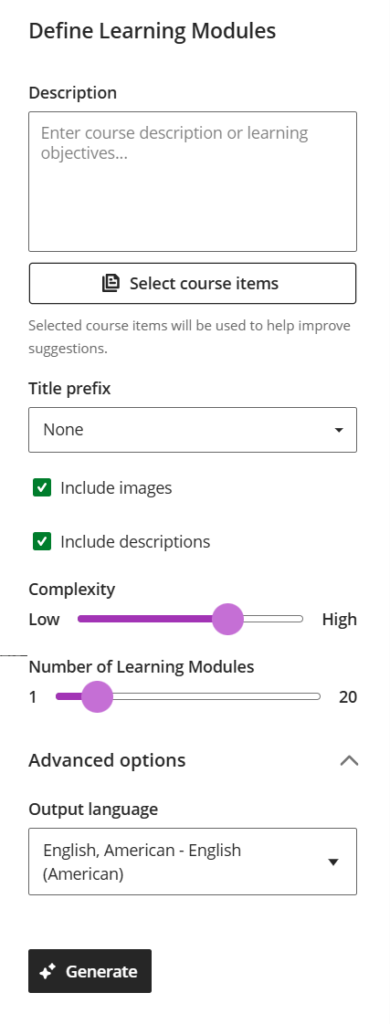
For instructional designers working with subject matter experts who are new to online course development, this is a genuine accelerant. You’re not handing a faculty member a blank canvas and hoping for the best; you’re handing them a populated first draft to react to. That’s a fundamentally different and more productive conversation.
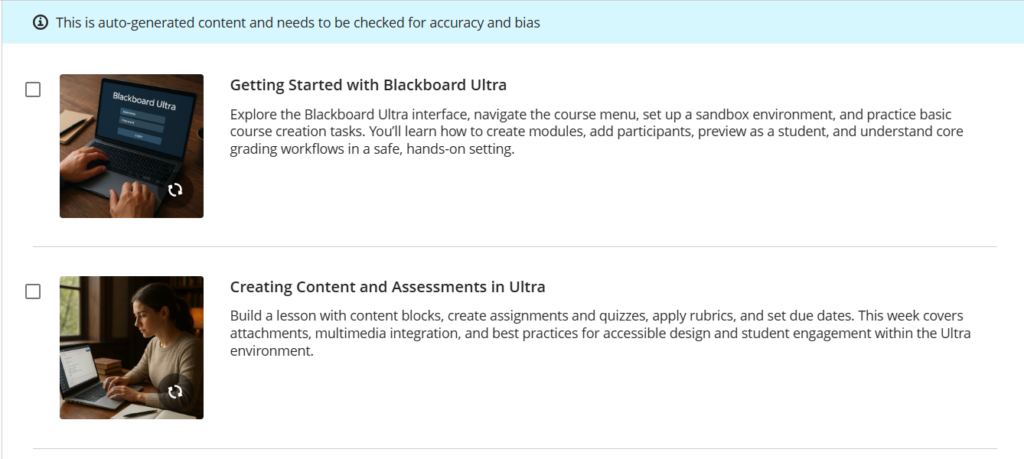
Options Available: AI Image Generation, Context Picker, Complexity Control
Biggest reason to use this feature: It transforms the course development kickoff from a standing start into a structured conversation. Instructional designers spend their time refining and improving, not coaxing a blank page into existence.
Assessments
Assessment design is where instructional designers earn their pay and where the workload tends to pile up fastest. The AI Design Assistant provides tools across three distinct assessment scenarios, each of which addresses a real bottleneck.
Test question and question bank generation allows instructors to produce multiple question types, such as multiple choice, short answer, and others, either from course context or from materials selected via the Context Picker. For instructional designers supporting high-enrollment courses with large question banks, the efficiency gain here is substantial. The output isn’t perfect, but it’s a strong first draft that a subject matter expert can review and refine rather than author from scratch.
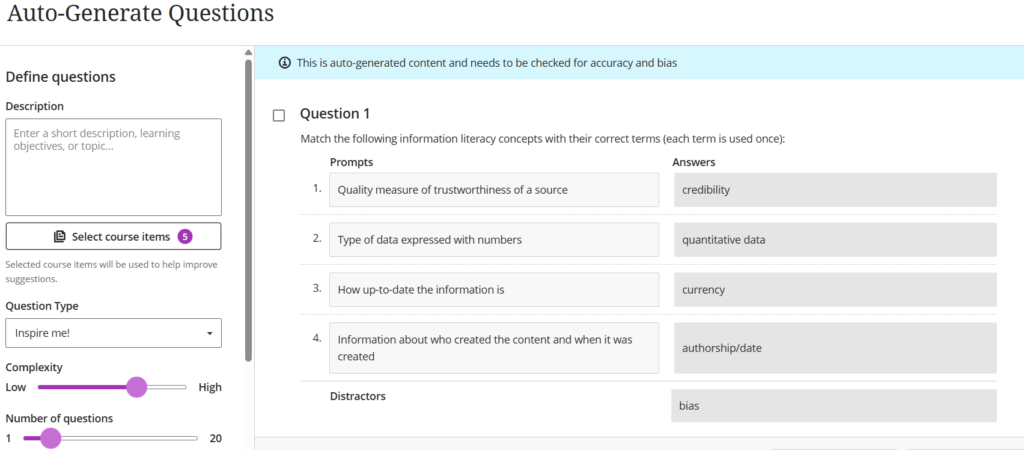
Options Available: Context Picker, Complexity Control, Quantity of Questions
Grading rubric generation takes assignment instructions as input and builds a rubric with adjustable criteria and column counts. Rubric design is one of those instructional design tasks that tends to be done inconsistently across an institution, sometimes carefully, sometimes as an afterthought. Having a structured first draft generated from the actual assignment instructions raises the floor. It also gives instructional designers a faster entry point for rubric consultations with faculty.
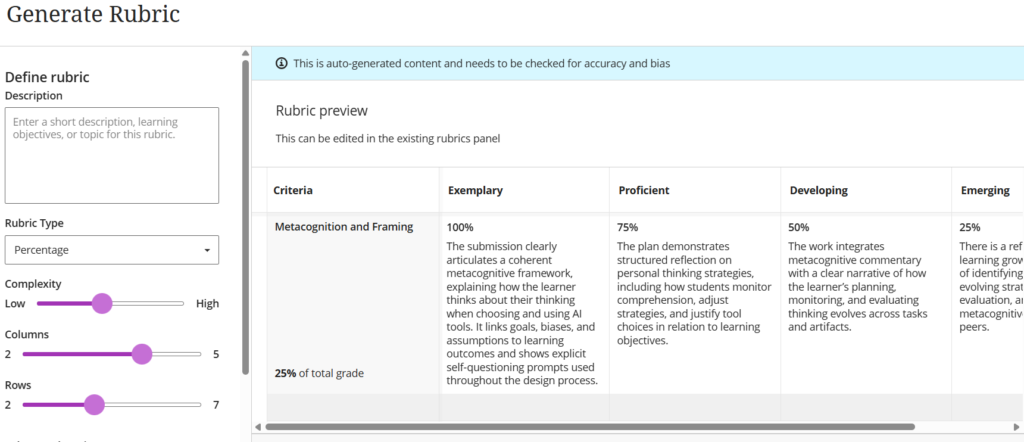
Options Available: Context Picker, Complexity Control, Number of Columns and Rows
Knowledge checks are inline, ungraded formative assessments embedded directly within Ultra Documents. They’re not tests. They’re quick comprehension checkpoints that live inside the content itself. For instructors trying to build more active reading experiences without adding formal assessments to the gradebook, this is a clean solution that requires minimal additional effort to deploy.
Options Available: Context Picker, Complexity Control
Biggest reason to use this feature: Assessment development is one of the most labor-intensive parts of course design. These tools don’t replace the instructional judgment behind good assessment; they eliminate the low-value authoring work so that judgment can be applied where it actually matters.
Assignments, Discussions, and Journals
Prompt design is harder than it looks. Getting instructors to write assignment prompts that target specific Bloom’s Taxonomy levels, discourage surface-level responses, and hold up against the current generation of student AI tools is a genuine instructional design challenge. The AI Design Assistant generates authentic prompts for assignments, discussions, and journals aligned to cognitive levels, with academic integrity as an explicit design consideration.
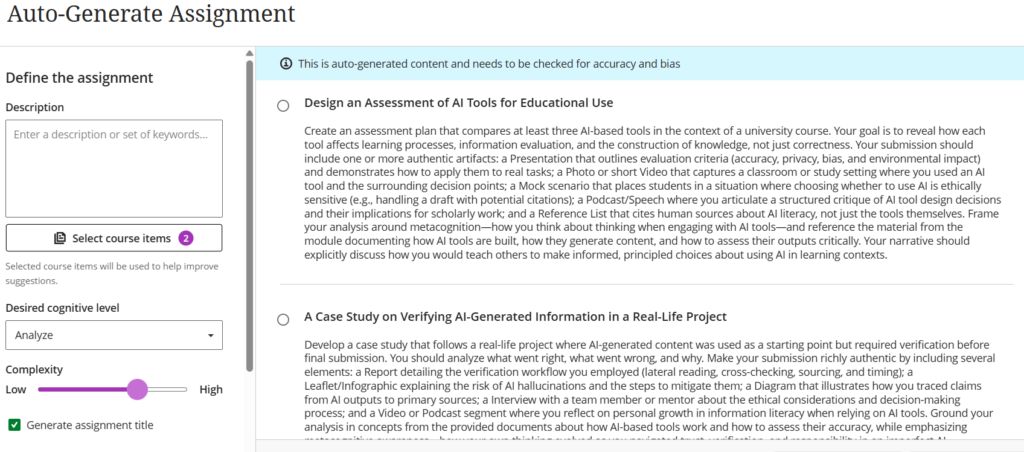
Whether you find the AI-assistant prompt framing reassuring or slightly ironic is between you and your institution’s academic integrity officer. The practical value for instructional designers is straightforward: instead of starting every prompt consultation from zero, you have a substantive draft to work from and improve.
Options Available: Context Picker, Complexity Control, Cognitive Levels
Biggest reason to use this feature: Good prompts drive good learning outcomes. This tool gives instructors and instructional designers a faster path to prompts that actually challenge students, and that’s worth a lot more than the time it saves.
Ultra Documents
Ultra Documents are Blackboard’s structured content page format, and they’re only as good as the effort that goes into them. The AI Design Assistant adds a co-authoring layer: after an instructor adds their content, the tool can reorganize it into cleaner layouts, embed knowledge check questions, and suggest relevant images. All without the instructor needing to think like a web designer.
This is particularly valuable for instructors who are strong content experts but weak on visual organization. The difference between an Ultra Document that reads like a dense wall of text and one that guides a student through the material is often just structure and pacing, and this tool can provide both on demand.
Options Available: Unsplash Images, AI-Generated Images, Knowledge Checks
Biggest reason to use this feature: Instructors are hired for their subject matter expertise, not their layout skills. This tool quietly closes that gap and produces content pages that students will actually engage with.
AI Conversations
AI Conversations stands apart from the rest of the AI Design Assistant because it’s a student-facing learning activity, not just a course authoring aid. The instructor defines the parameters like subject matter, AI persona, or conversation type, and a student engages in a structured back-and-forth with the AI within that context. The instructor reviews the interaction and grades it.
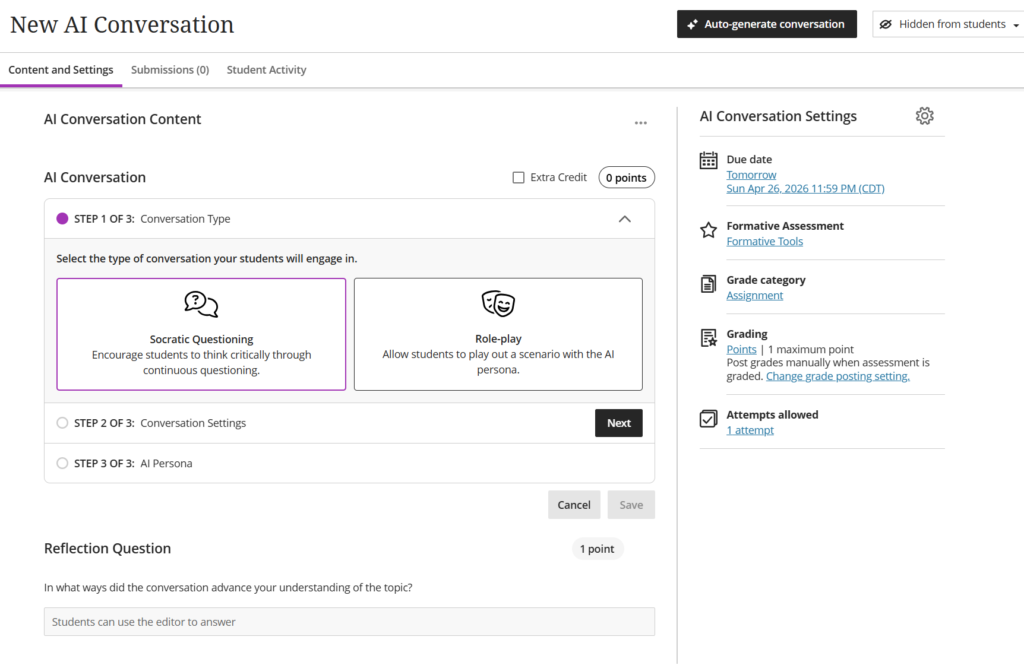
The use cases that have generated the most enthusiasm from instructors I’ve spoken with are the ones that previously required either a human role-play partner or nothing at all: foreign language conversation practice, clinical patient interaction scenarios, customer service simulations, and Socratic dialogue with historical figures. These programs have always wanted this kind of practice opportunity. They just didn’t have a scalable way to deliver it.
Options Available: AI Persona and Instructions, Complexity of AI Responses
Biggest reason to use this feature: It gives instructors in practice-heavy disciplines like nursing, foreign languages, business communication, or social work a scalable simulation tool that didn’t exist in the LMS before. For those programs, this isn’t a nice-to-have. It’s a genuine instructional capability upgrade.
The Admin Takeaway
If these features are sitting turned off at your institution, that decision should be a deliberate policy choice and not an administrative default. These tools are part of your existing Blackboard license. The policy framework behind them is more rigorous than anything comparable in the Canvas or Brightspace ecosystem. The technical implementation runs on infrastructure with reasonable data handling commitments. The instructor-facing toolset is purposefully scoped to ensure this isn’t a wild west AI sandbox; it’s a set of course creation assists with content filtering in place.
If your institution turned these off during the initial AI anxiety wave of 2023, it’s time for your institution to take a good look at them, schedule the review with your power Blackboard instructors (especially nursing or foreign languages). Bring your academic integrity office, your instructional design team, and your IT security leadership. Read the AI Trustworthy Framework documentation. Have an actual policy conversation. That’s how these decisions should be made. Not by leaving the off switch where someone flipped it two years ago.
If the recent Texas DLA conference is any indication, instructors are using AI tools on their own. The question is whether they’re doing it inside a framework your institution controls or outside one it doesn’t.
Technically Yours,
The Blackboard Guru
